Referee – Renewing Your Referee Role
Referees primarily register through their local referee club.
If you already have an existing referee role, you can renew it by following the instructions below.
(If you logged in on a mobile device, turn your phone to landscape mode to see more icons.)
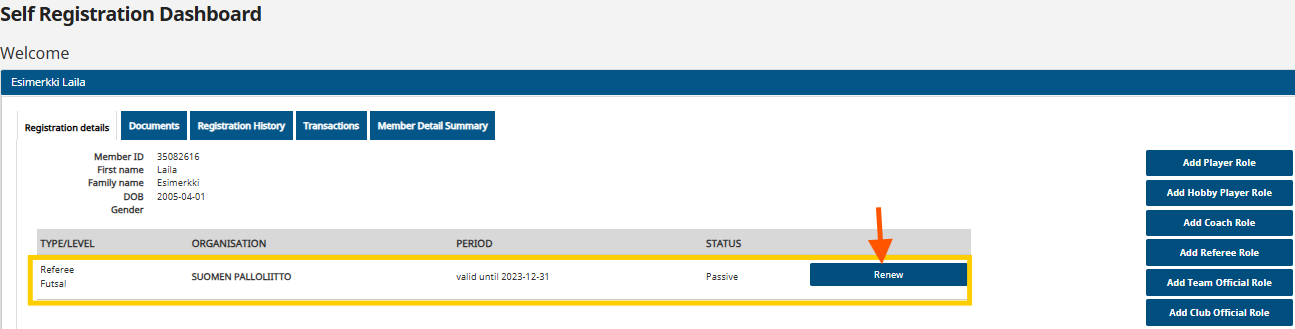
Start the renewal from the row of your referee registration by selecting “Renew”.
Please note the following! In this guide, you will be updating a previous referee registration.
(Select “Add referee role” if you do not have a previous referee role, if you are adding a new referee role in another sport, or if you are registering with another referee club.)
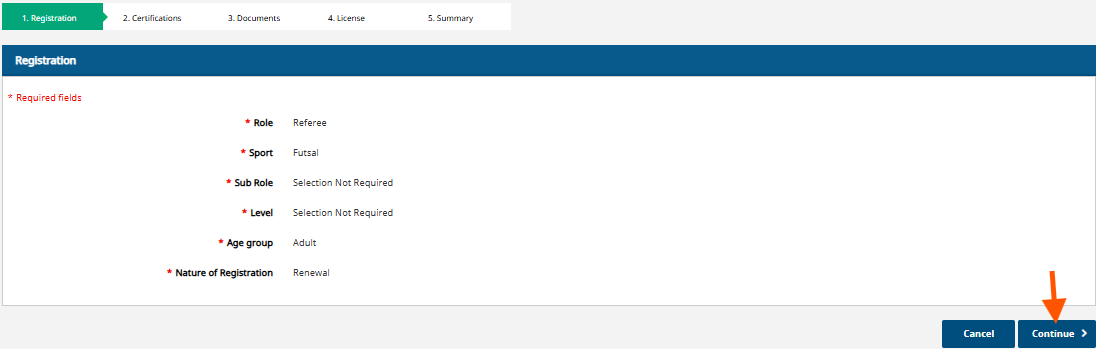
Since this is a renewal of the previous registration, no changes are made at this stage. Select ‘Continue´.
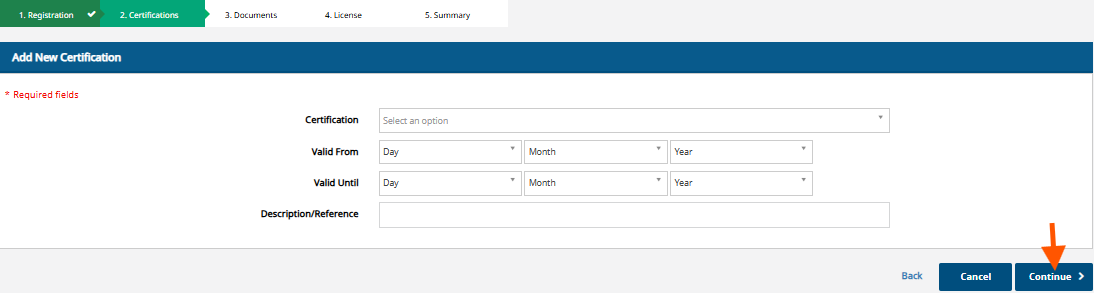
“No certifications are added at this stage. Select ‘Continue’.”
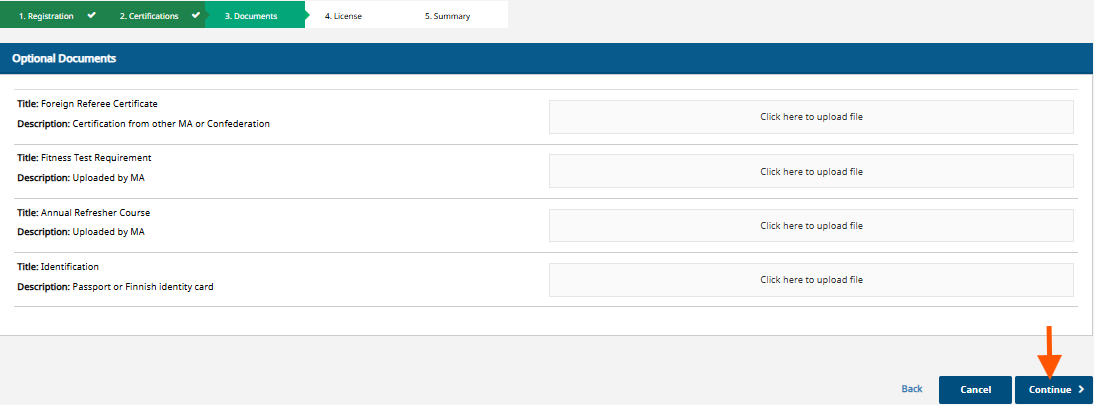
No documents are added at this stage. Select ‘Continue’
If the person already has a player pass paid for the same season, the system will set the price of the referee pass to 0€.
If the person does not yet have a player pass (pelipassi) paid for the current season, the system will add the player pass (pelipassi) fee.
The referee pass does not include insurance. Select insurance if needed.
Select ‘Continue’.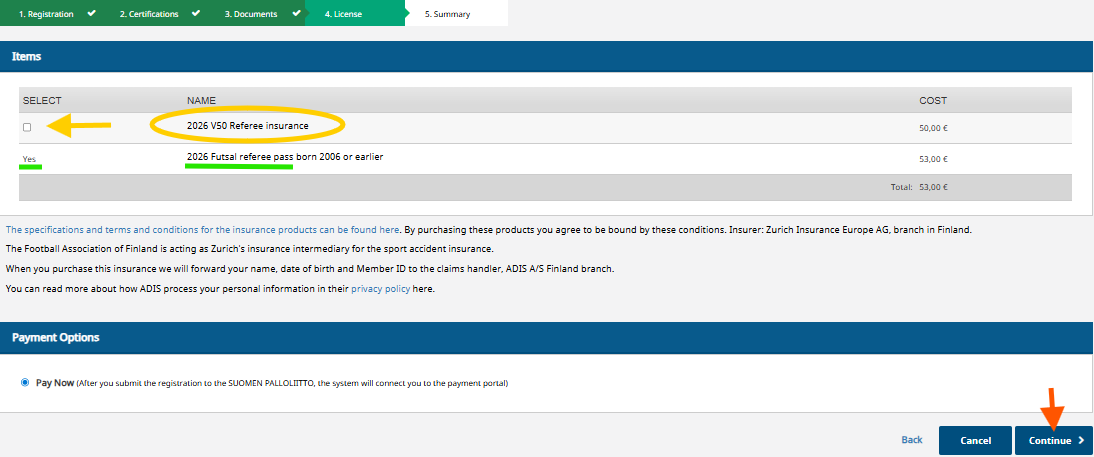
Check on the summary page that the information is correct, and if no changes are needed, select "Continue to payment and Submit to Member Association".
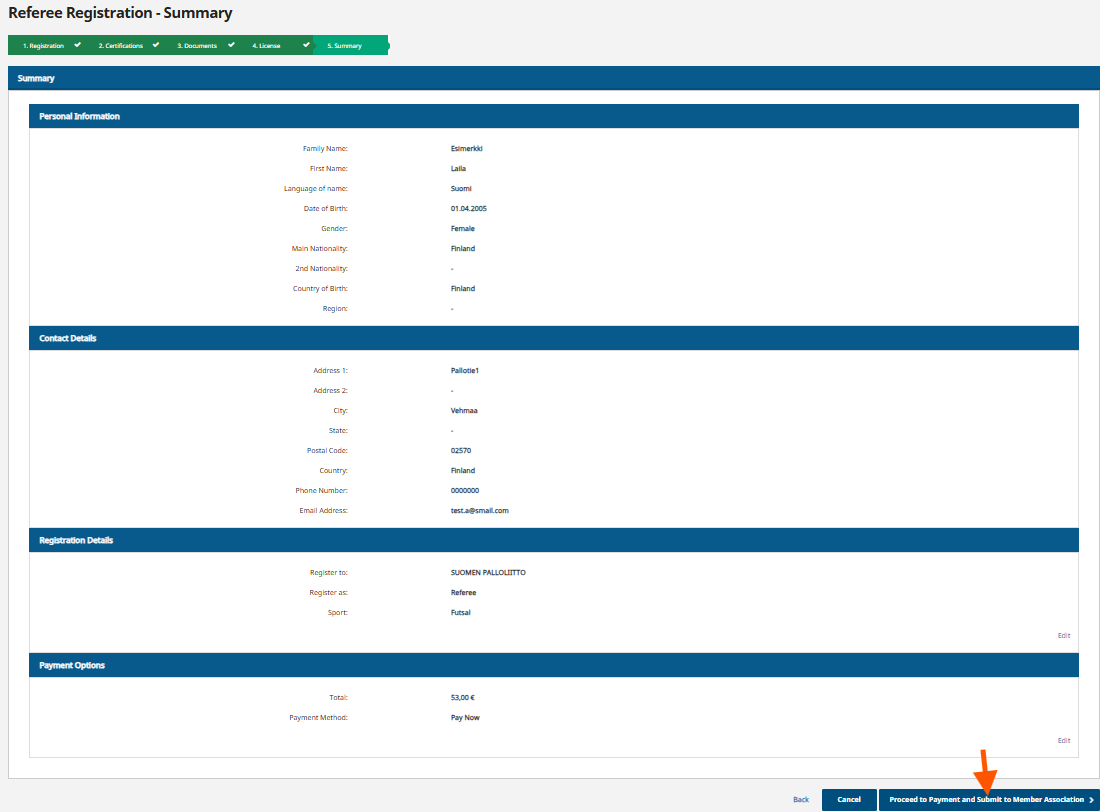
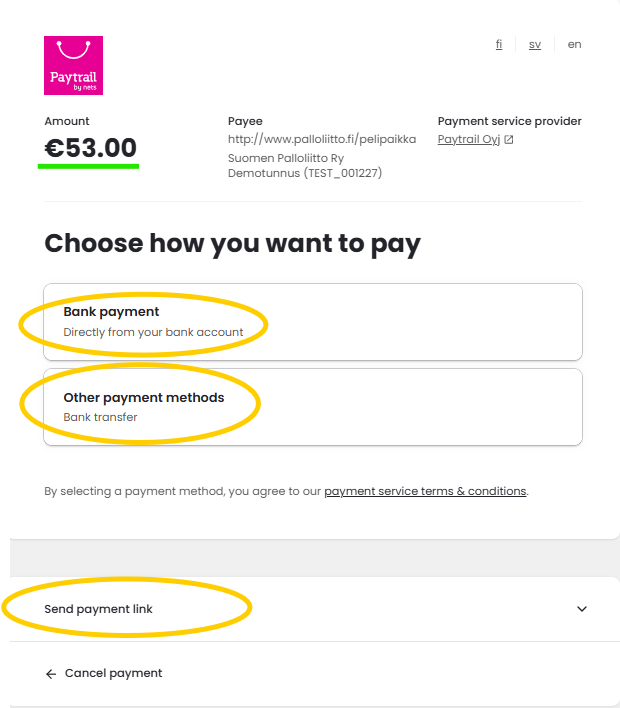
You can now proceed to pay for your player pass (referee pass).
Bank Payment:
Select the online banking icon of your own bank to go directly to the payment of your referee pass.
Other Payment Methods:
By clicking the bank transfer icon, you will receive the payment details and can complete the payment later.
(When paying by bank transfer, the payment will be registered within a few banking days.)
Send Payment Link:
You can also send a payment link by entering your email address (or the payer’s email address) in the email field and clicking “Send”.
This sends the payment link to the email.
If you have received a payment link by email, the payment method options will open when you click the link.
The payment link can be used only once.
(Note! By selecting the Nordea icon, you will proceed to payment via a personal account. The Nordea B2B icon directs you to payment via a company or association account.)