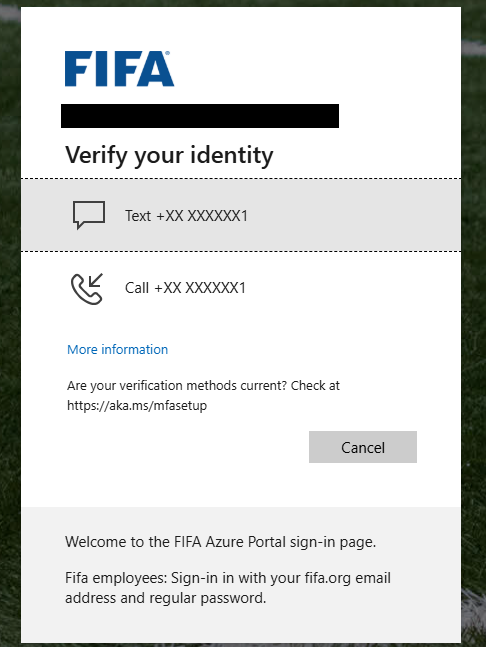
Single Sign On and Multi Factor Authentication Guide
The login process for FIFA Connect changes from 26.10.2026 onwards. This update will enhance platform security, reduce password fatigue from frequent password changes, minimise the risk of credential reuse, and provide a more secure access method through Multi-Factor Authentication (MFA).
This guide walks users through signing in for the first time using Microsoft Azure Single Sign-On (SSO), also known as Microsoft Entra ID.
Users will require the following:
- An email address associated with their FIFA Connect and/or FCMS access
- Access to a secondary authentication method, such as:
- Mobile phone for SMS or voice calls
- Microsoft Authenticator App (recommended)
- A modern web browser
Understanding Sign-In Journeys: Personal vs. Corporate Email Accounts
The sign-in process depends on the type of email account used. Follow the relevant scenario below.
1. Personal Email Account (e.g. Gmail)
Users may receive an eight-digit verification code by email.
Enter your registered email address.
Retrieve the verification code from your inbox.
Enter the code on the sign-in screen.
Note: The code is valid for 30 minutes.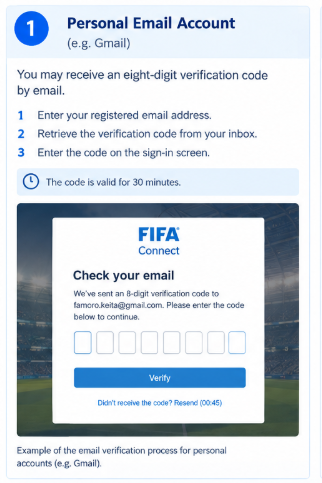
Caption: Example of the email verification process for personal accounts.
2. Personal Microsoft Account (e.g. Outlook or Hotmail)
Users may be asked to enter their Microsoft account password or verify their identity.
Enter your registered email address.
Follow the on-screen instructions.
Enter your password or complete the available verification steps.
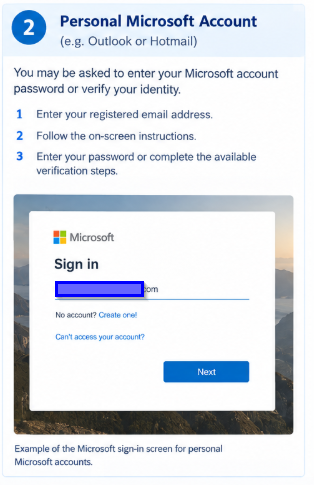 Caption: Example of the sign-in process for personal Microsoft accounts.
3. Corporate Account (Microsoft Entra ID)
Users are redirected to their organisation's sign-in page.
Enter your corporate email address, if requested.
Sign in using your organisational credentials.
Complete any required additional verification, such as Microsoft Authenticator.
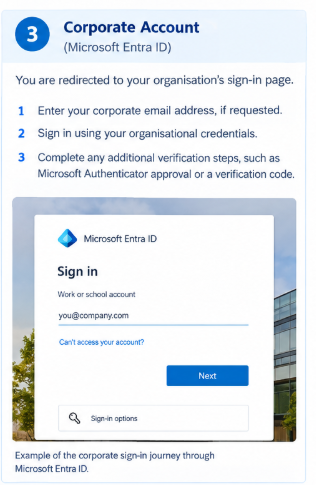 Caption: Example of the corporate sign-in process through Microsoft Entra ID.
Step by Step - First Time Login
1. Go FIFA Connect sign-in page
Open Pelipaikka via https://fin.ma.services/.
2. Enter the email address associated with your FIFA Connect: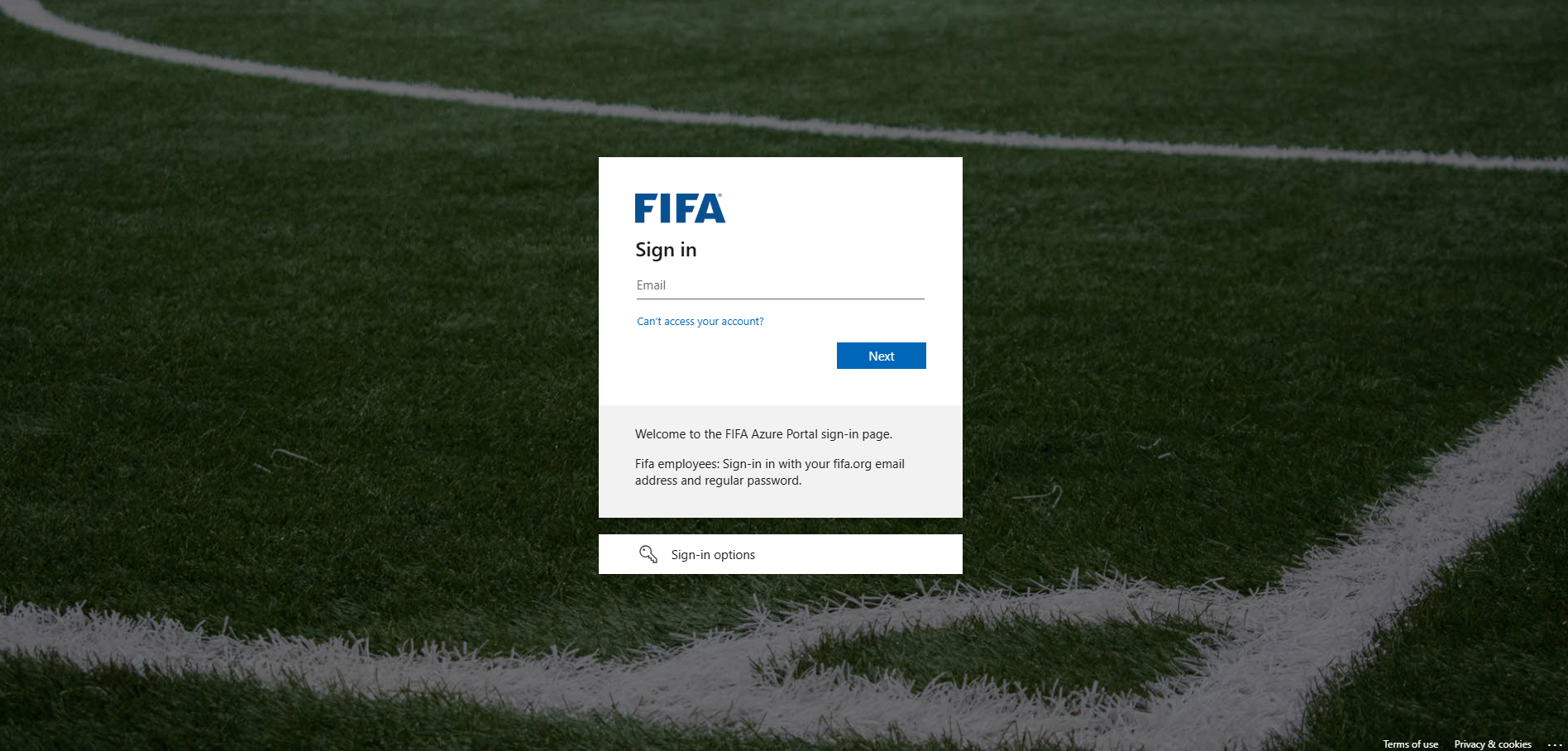
3. Enter your credentials
Enter your email address.
4. Password reset
A password reset email will be sent to your registered email address. A one-time code will also be provided for verification. 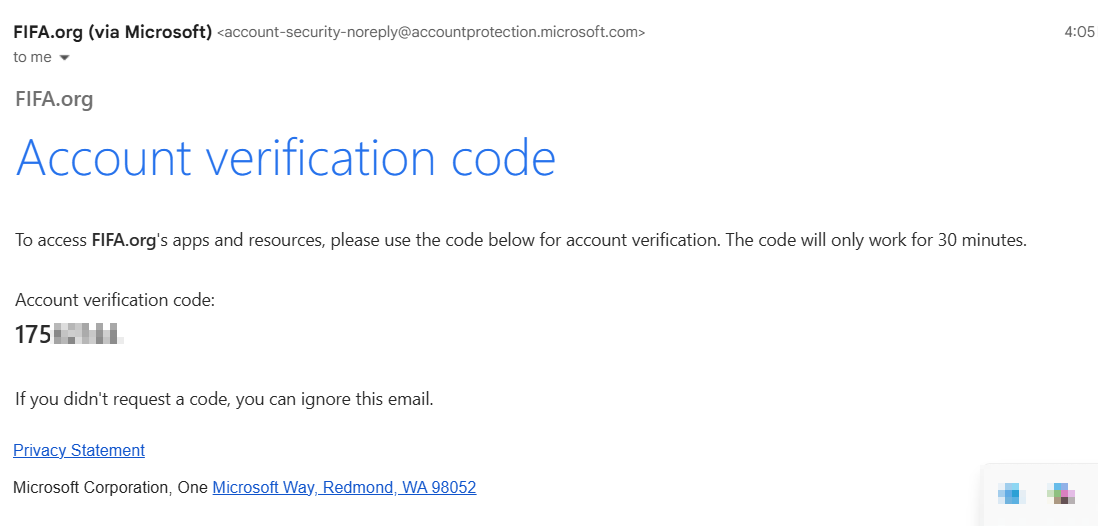
5. Set up Multi-Factor Authentication (MFA):
MFA setup is required during the first login. Users may see a prompt such as “More information required” or be directed to configure security methods.
Users can select their preferred authentication method.
Recommended option: Microsoft Authenticator App
- Download the Microsoft Authenticator App from the App Store or Google Play.

- Follow the prompts to add your account
- by scanning the QR code or
- entering the setup code
- Approve the test notification or enter the verification code.
- Alternative options:
- Phone number for SMS or voice call verification
- Email verification using a one-time time passcode
Once completed, click “Next” or “Done”.
6. Review Permissions / Consent (if applicable):
Users may see a screen requesting permission for the application to access basic account information. Review the permissions and click “Accept” or “Yes”. This usually only appears during the first login.
7. Modify Authentication Preferences:
If users wish to change their preferred authentication method in future, they can do so by going to: https://myapps.fifa.org/
Then select: My Account → Security Info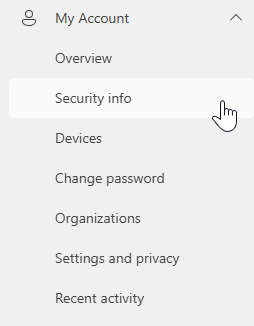
After First Time Login
After the initial login and Multi-Factor Authentication (MFA) setup have been completed, users will simply be prompted to verify their identity using their preferred authentication method during future logins.
Depending on the selected authentication preference, users may be required to:
- Approve a notification through the Microsoft Authenticator App
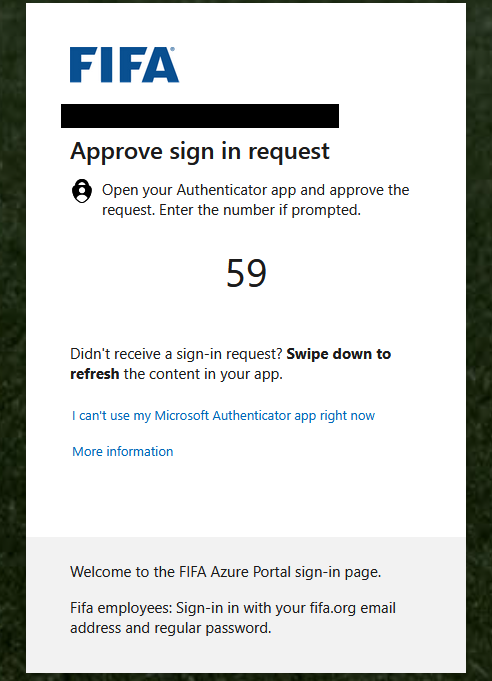
- Enter a verification code received via SMS or email, or answer a phone call verification request